In this tutorial, I will explain what DNS is and How DNS works?
How to configure DNS?. It will help you understand how DNS works under the hood and solve DNS related issues in your server and configure DNS for you.
DNS:
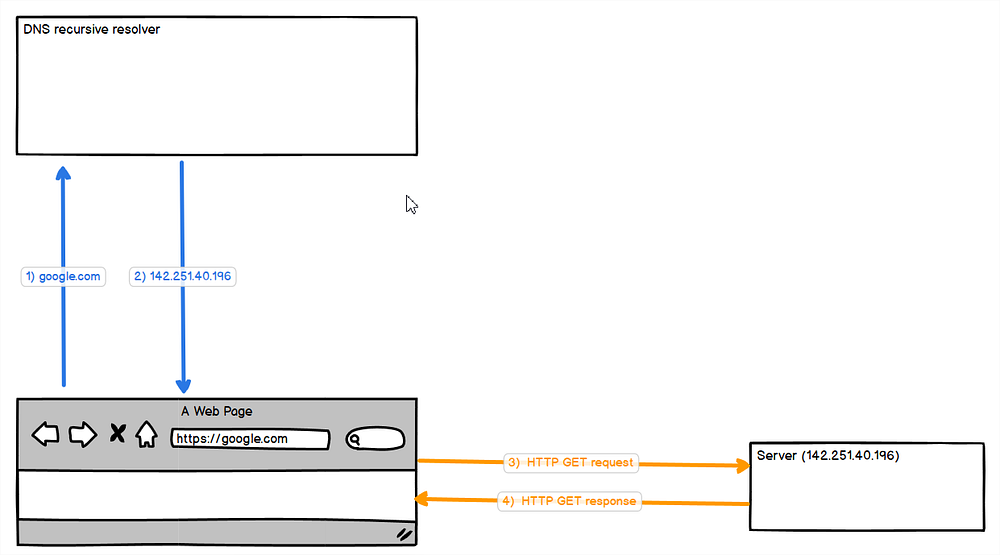
DNS(Domain Name System) is an internet system used to identify a machine/server(IP address) in the world. For example, if we type www.google.com or www.amazon.com in our browser. DNS resolver will help us by sending back the IP address of www.google.com — 142.251.40.196.
So the browser will send the HTTP request to 142.251.40.196 IP address to get the response from the server and render it in our in the browser.
How DNS works:
I have created an image to explain how DNS works.
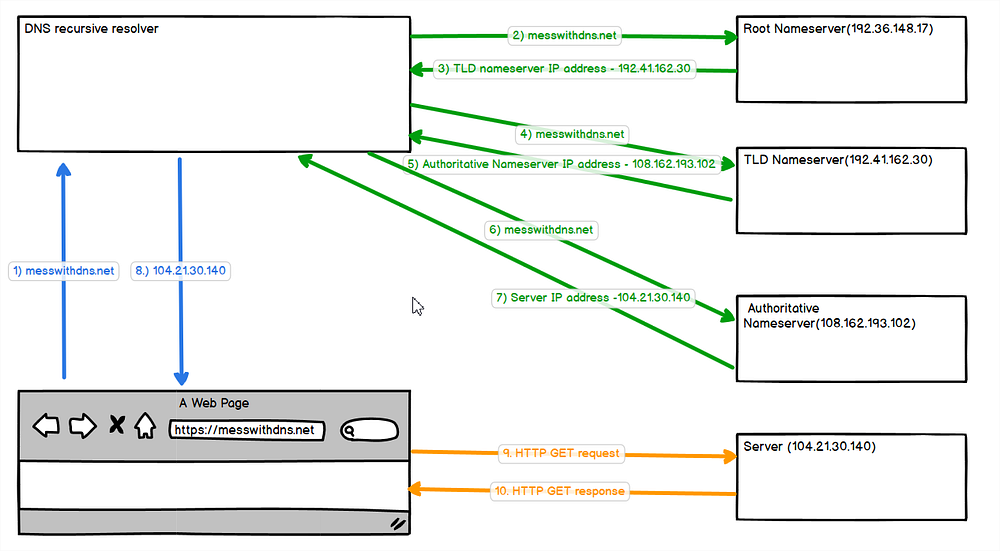
Whenever we type a domain name or send an API request to a domain., The browser has to identify the respective IP address of the machine to send HTTP requests. The browser doesn’t have any functionality implemented to get the IP address. But with the help of a DNS resolver, it can get the IP address.
There are a series of steps needed to get the IP address of any domain name.
- The browser sends the domain name(messwithdns.net) to DNS recursive resolver.
- As the first step, the DNS resolver will send the domain name to one of the 13 root name servers in the internet system.
- Root Nameserver will send back the IP address for TLD(Top Level Domain) nameservers for com, org, net, edu, xyz, etc.
- And then DNS resolver will send the domain name to the TLD nameserver IP address for getting an authoritative nameserver. The authoritative nameserver is the one that has all the DNS records corresponding to a particular domain.
- TLD nameserver will send back the authoritative nameserver IP address.
- DNS resolver will send another request to the authoritative nameserver IP to resolve the domain name.
- The authoritative nameserver will send the IP address corresponding to the domain name to DNS recursive resolver.
- DNS resolver will send back the IP address to the browser.
- The browser will send the respective HTTP request to the IP address to process the request.
- The server will send the response to the HTTP request to the browser.
From the above image and explanation, you can understand that DNS get resolved with the help of
- DNS resolver
- Root nameserver
- TLD nameserver
- Authoritative nameserver
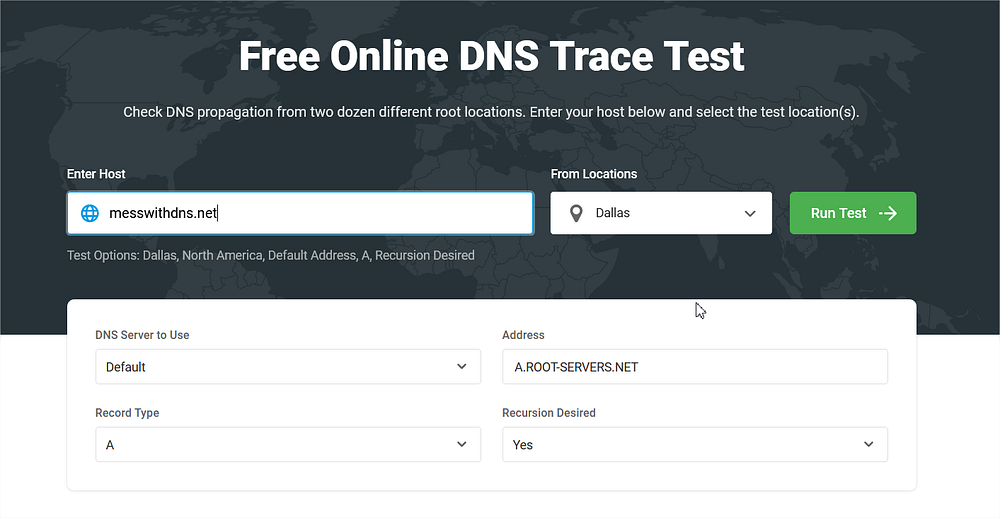
For an even better understanding, you can visit https://www.dotcom-tools.com/dns-trace-test and give the domain name you want and see how it gets resolved using nameserver.
For example, I test with messwithdns.net, and you can see below.
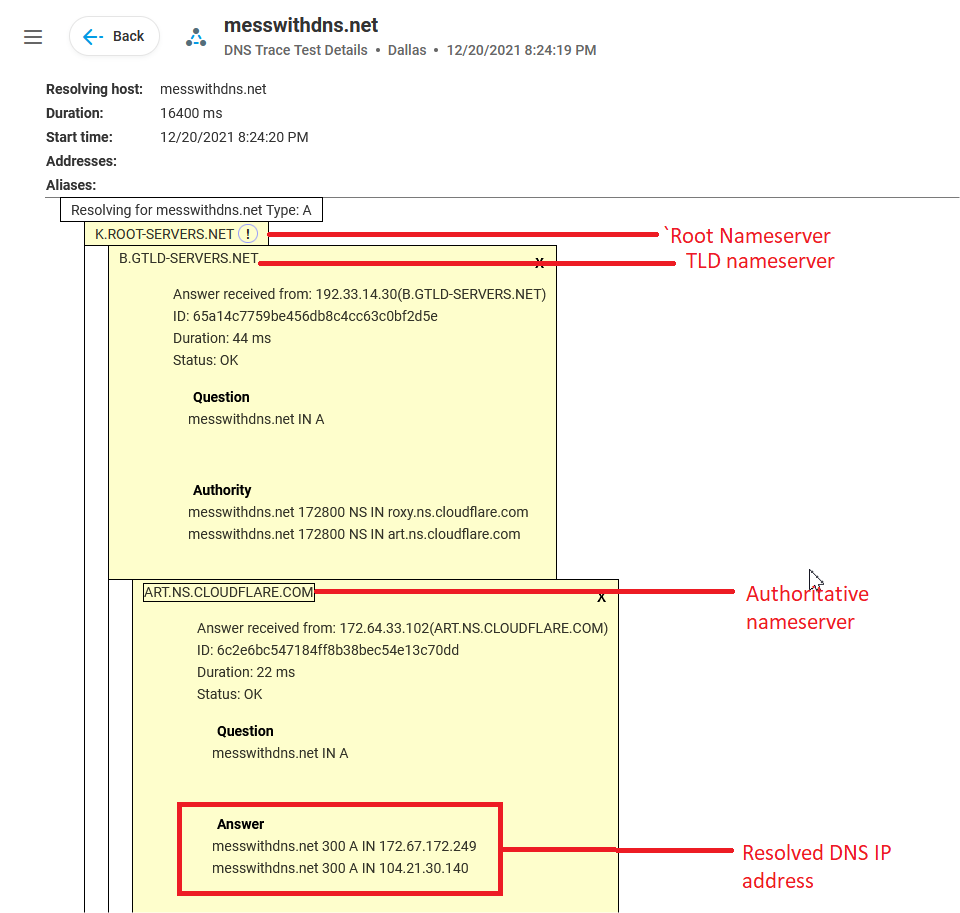
Above Cloudflare(ART.NS.CLOUDFLARE.COM) is the authoritative nameserver. It means all the DNS records corresponding to messwithdns.net configured at Cloudflare.
World Before DNS:
Did you ever think about how putting http://localhost in browser points to our machine IP address(127.0.0.1)? Where does it get resolved?
In windows: C:\Windows\System32\drivers\etc\host
In linux: /etc/host
You can open the file and see localhost mapped to 127.0.0.1
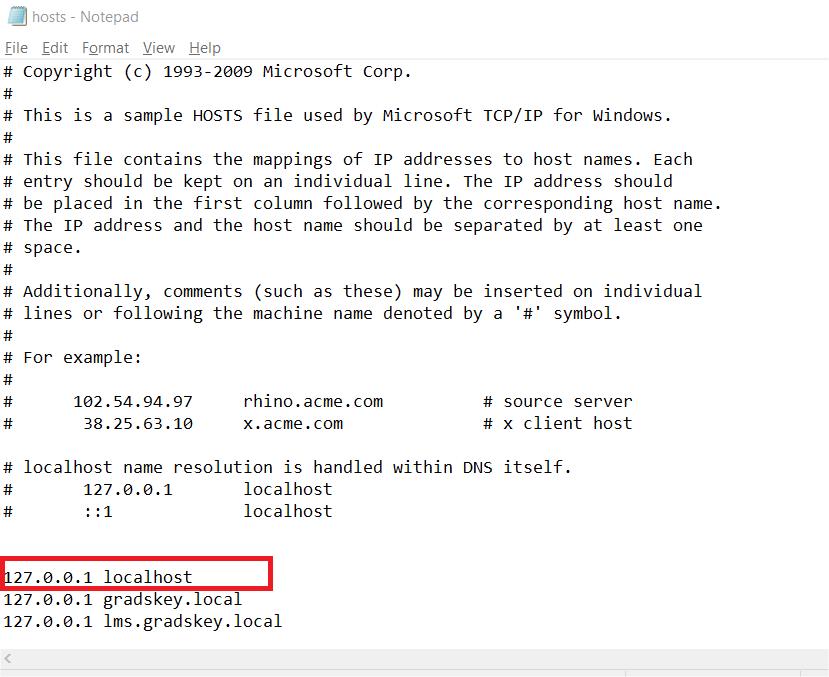
Today we are using decentralized DNS. But before that, they were only centralized DNS, and everyone had to download the HOST.TXT file and import it into their machine. Like we have seen in the above image. But the problem with that is when a new machine added HOST.TXT gets updated. We have to download a new host.
DNS records:
There are different types of DNS records, but their ultimate is to resolve and send back the record data in it.
Records type are
- A record: Value should be IPv4 IP address of the machine
- AAAA record: Value should be IPv6 IP address of a machine
- CNAME(Canonical Name) record: Alias to another hostname
- MX(mail exchanger) record: Domain name of the mail server
- NS(Nameserver) record: Used to have another custom Authoritative nameserver
- TXT: Descriptive text, used for authentication of domain
There are other records too. But these will be mostly enough.
Mess an A record With DNS:
In the past week, I received a notification for the blog. I’ve never seen a DNS tool until that. It has everything you need to test/try out a DNS.
Visit the site https://messwithdns.net and press start experiment. It will create a random subdomain for you. For me, the subdomain is sandals59.messwithdns.com.
Let’s try with A record first.
Start your local apache or Nginx webserver. Try to access with http://127.0.0.1. You will see the webpage. The same webpage can be also accessed via http://localhost because 127.0.0.1 localhost is already mapped in our host file in the local machine.
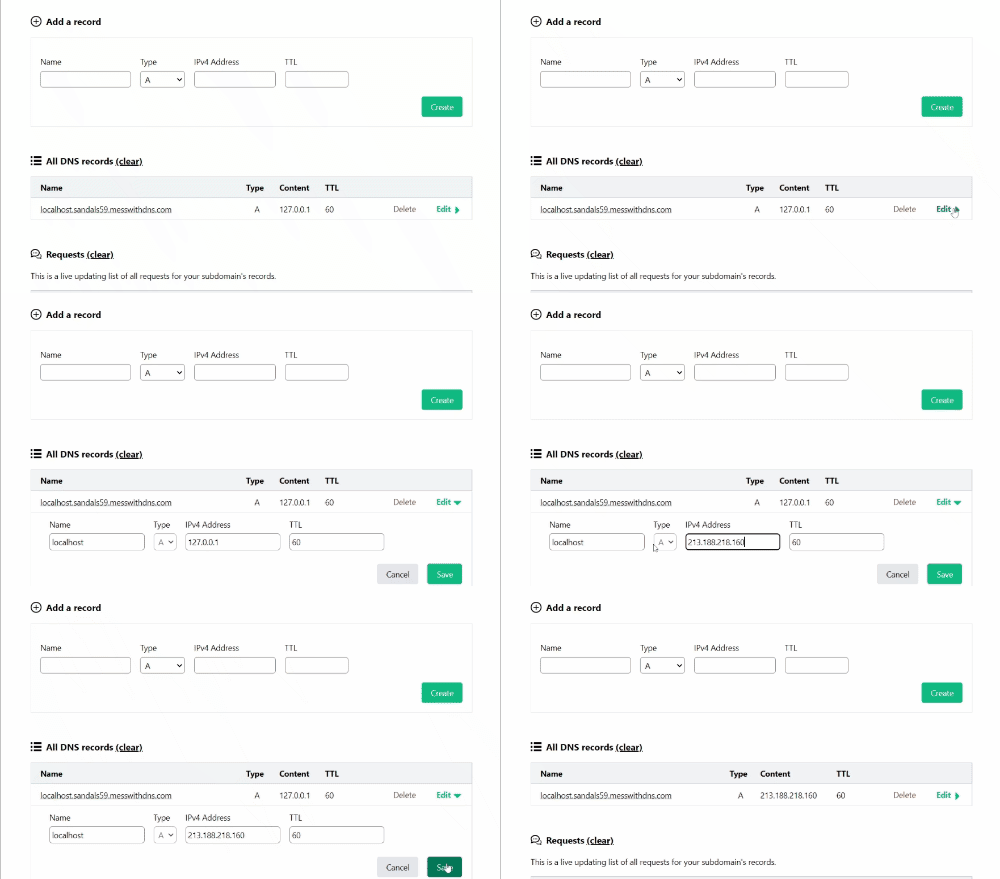
We can create a new A record for 127.0.0.1 in messwithdns.net and access it with the newly created domain.
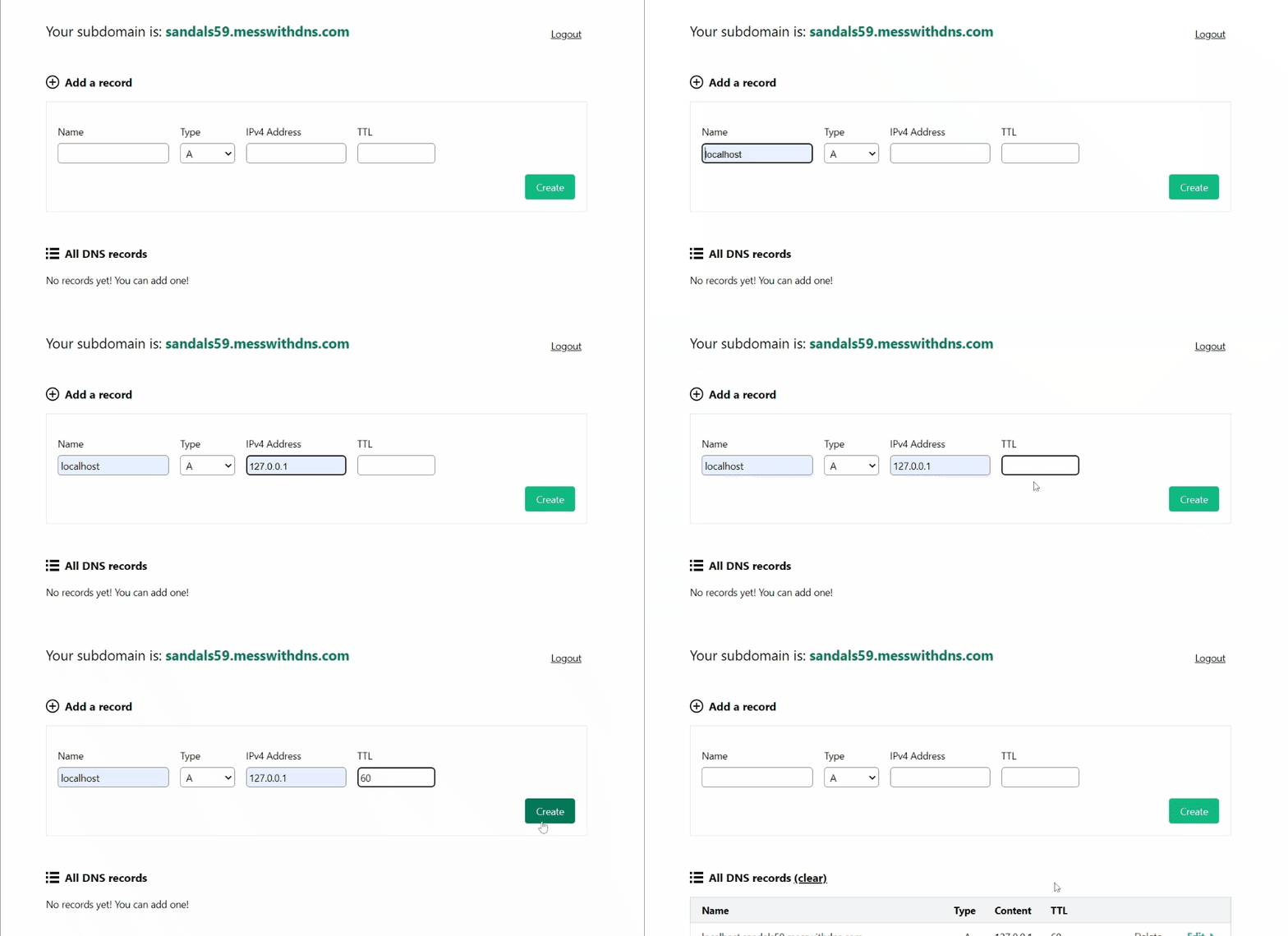
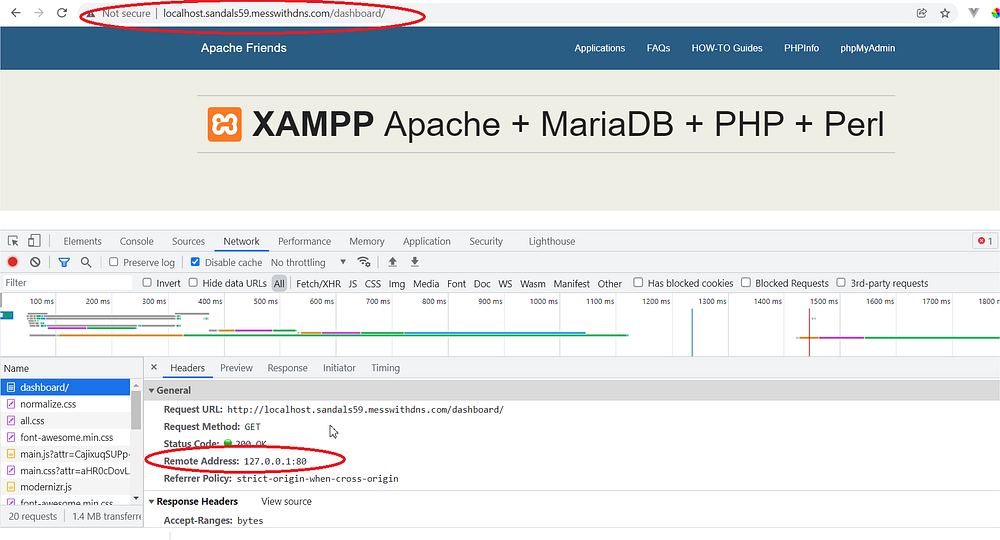
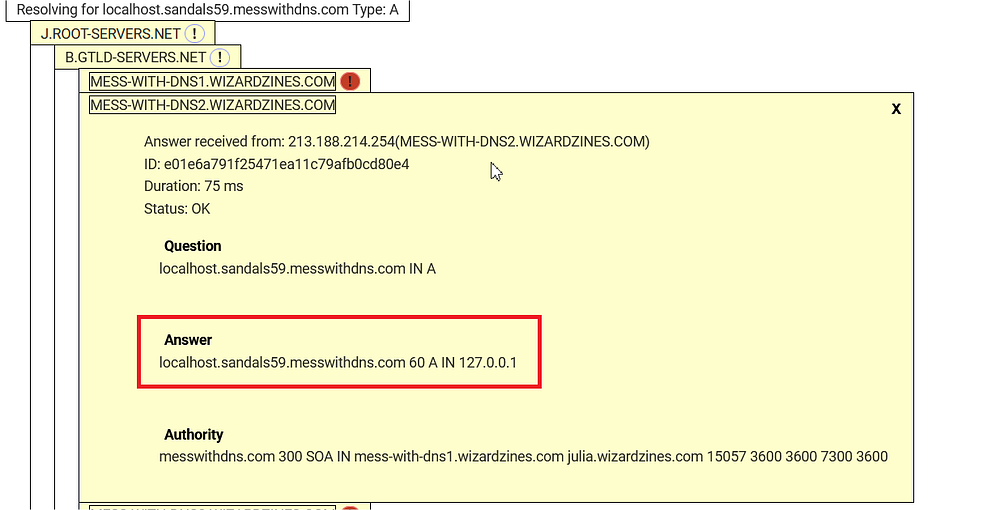
Now I have created a domain localhost.sandals59.messwithdns.com and its points to 127.0.0.1
Let’s try with another A record. Enter the IP address 213.188.218.160. It will point to
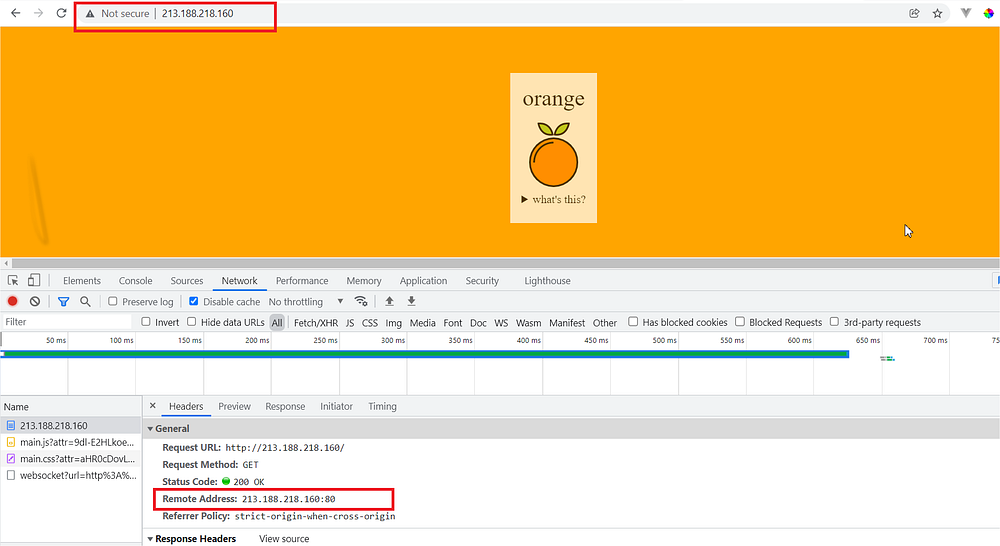
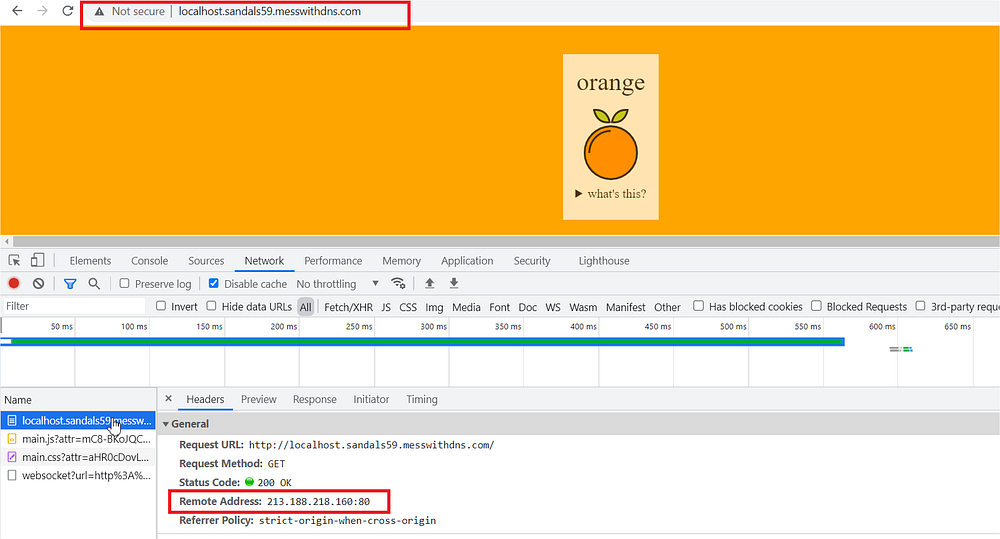
Now point the localhost.sandals59.messwithdns.com to 213.188.218.160
Now visit the domain name http://localhost.sandals59.messwithdns.com/
Mess an MX record:
Now create a custom mail for us temporarily.
For that visit https://www.fastmail.com/signup/ and enter your name and credential you want.
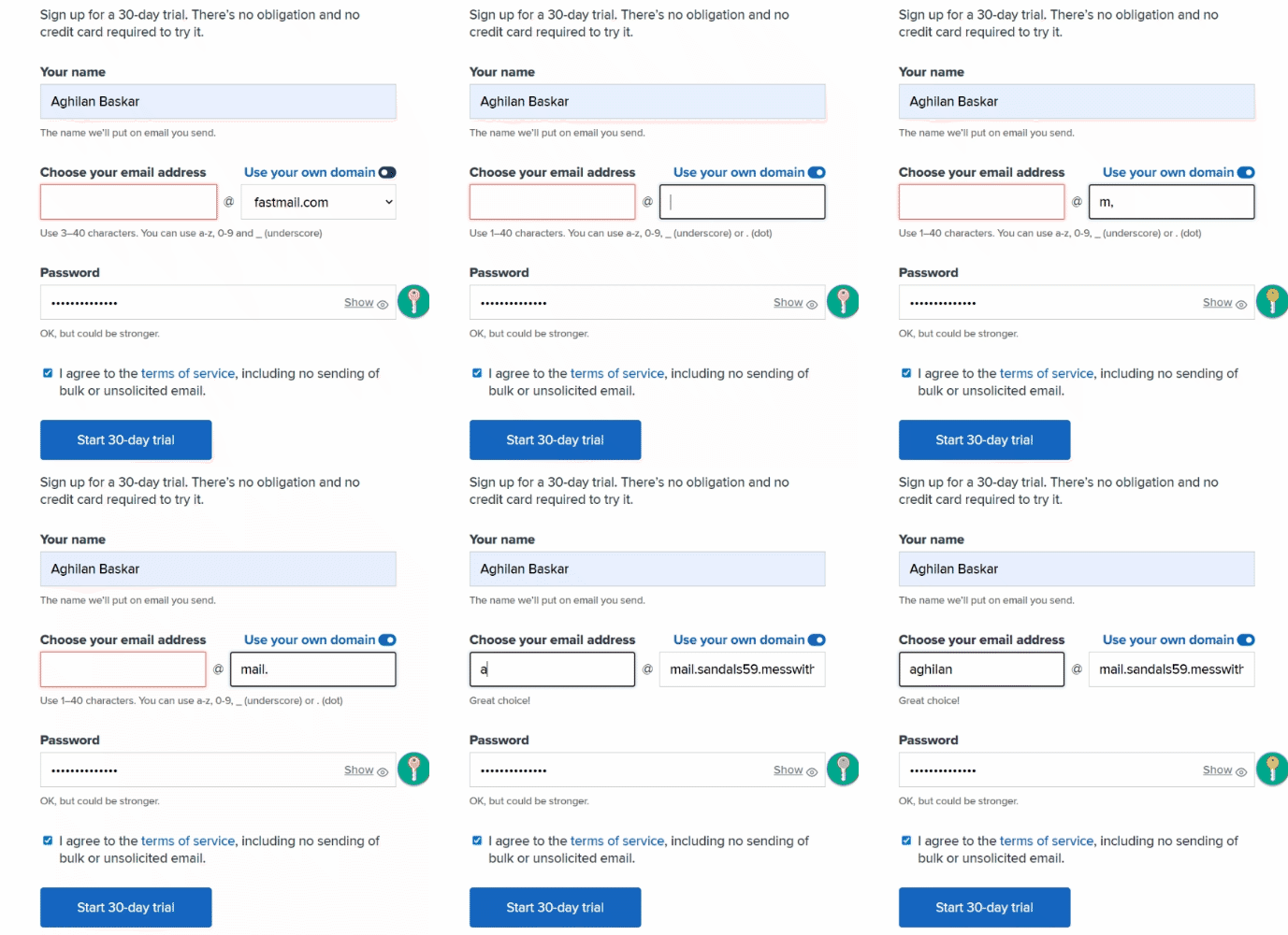
After you signup, you can configure your MX record to receive an email.
In this link, it is mentioned to the FastMail server to our MX record. So that Fastmail will know when mail send or receive to my mail id aghilan@mail.sandals59.messwithdns.com
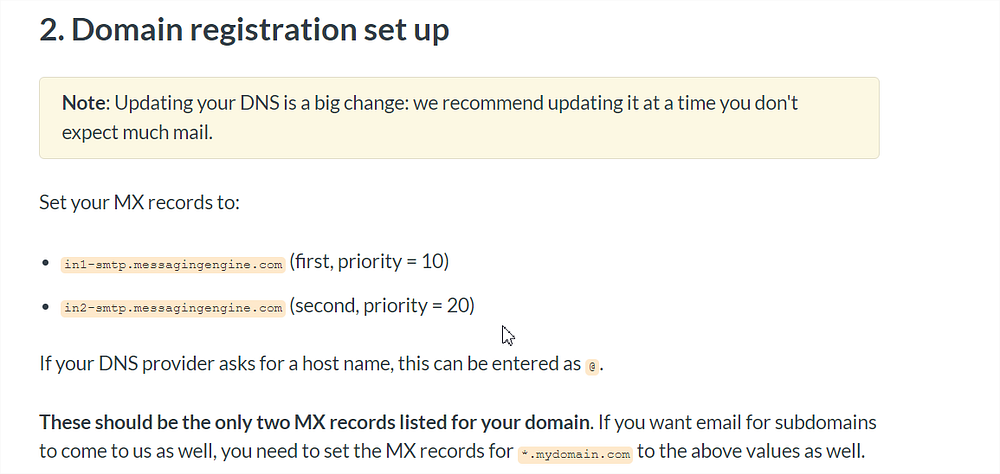
Create two MX records with Fastmail mail server.
Set your MX records to:
in1-smtp.messagingengine.com (first, priority = 10)
in2-smtp.messagingengine.com (second, priority = 20)
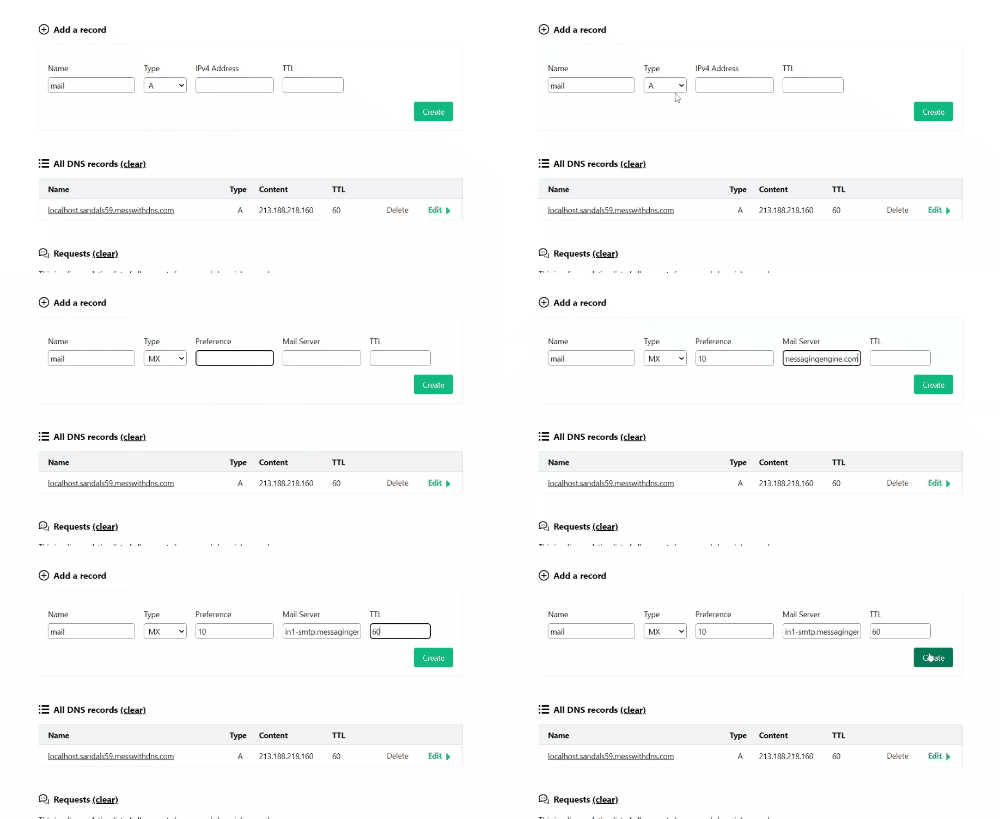
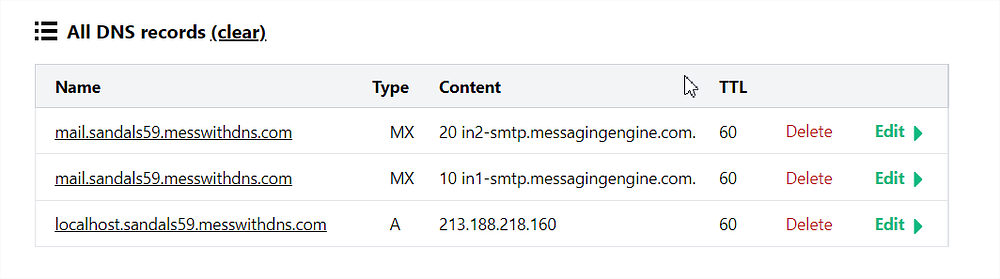
Then follow the instruction from FastMail to send and receive mail.
Conclusion:
You can try other Tutorial experiments, Weird experiments and Useful experiments in messwithdns.net to understand everything clearly.
In the end, DNS is nothing but the phone book of the internet system which used to get the mobile number(Value of any record) of any person(domain name).
I hope this one helps you in any way to configure and solve the DNS issue.
Comments
Post a Comment